
Automatic sorting
Only shortcuts (.lnk, .url and similar) go in Desktop Shortcuts. Folders go in Folders, and every other real file — including .exe and .msi — goes in Files. Items you placed in your own sections stay put.
A Windows app from TopPC
Arranges your desktop into fixed sections — files, folders and shortcuts each have a place, so the desktop itself stays clear.
Also on the Microsoft Store as Desktop Organizer Pro
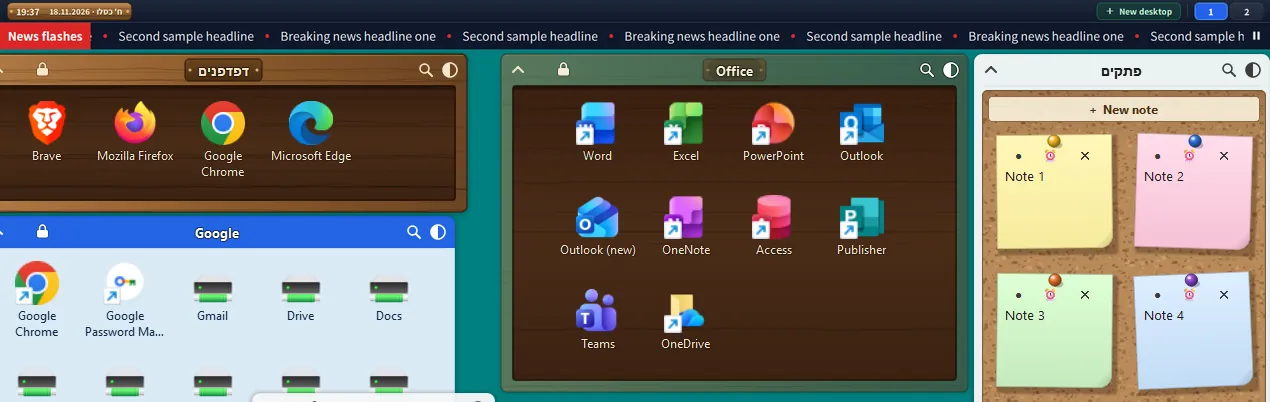
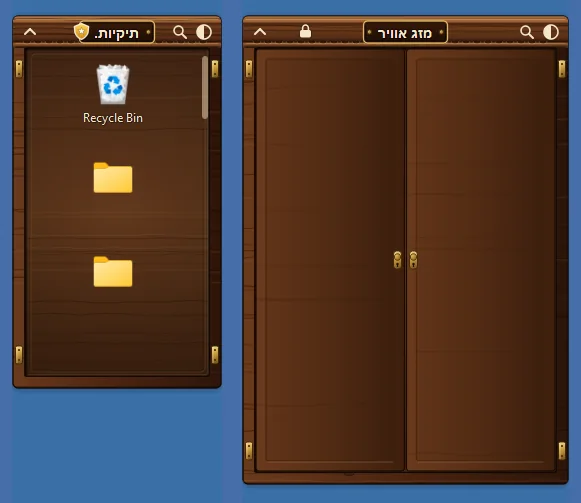
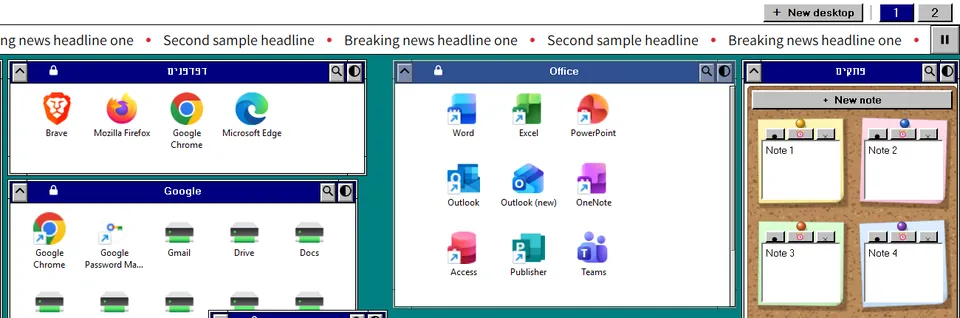
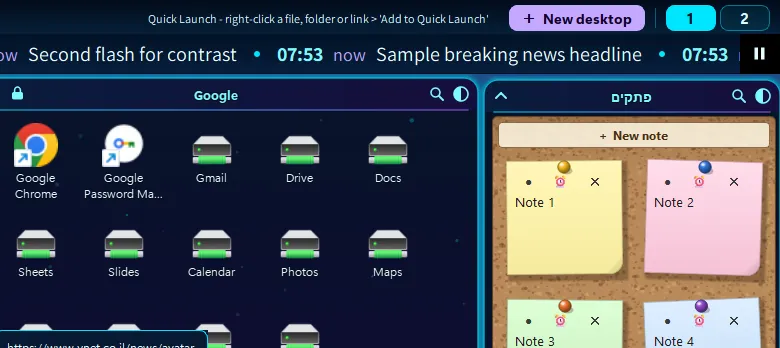
The app sits on your desktop and splits it into sections. Some are docked at the edges; free sections can sit in the middle — and they never overlap.
Only shortcuts (.lnk, .url and similar) go in Desktop Shortcuts. Folders go in Folders, and every other real file — including .exe and .msi — goes in Files. Items you placed in your own sections stay put.
Drag and resize from any edge. Magnet snapping and column gravity keep the layout tidy: sections never cover one another.
A New desktop button and a number for each desktop in the top bar. Switch with Ctrl+Alt+number. Right-click to rename or delete.
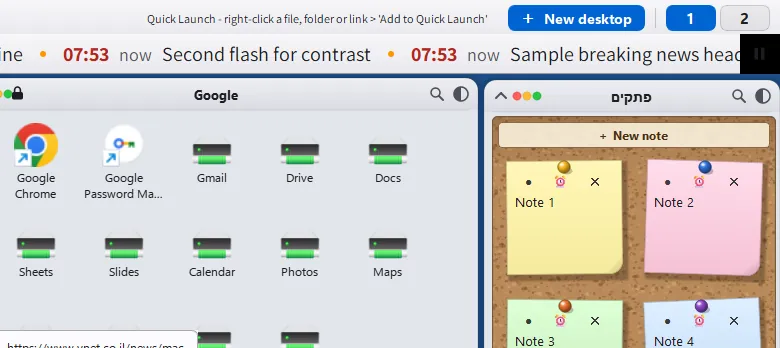
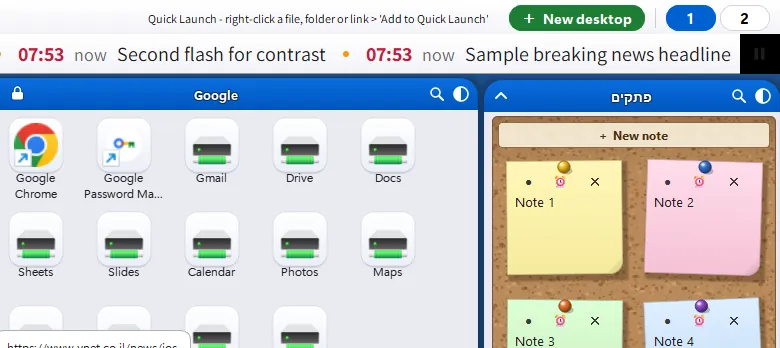
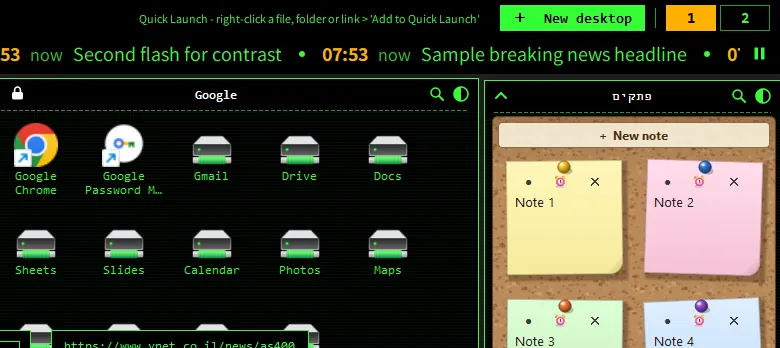
An analog or digital clock with the Hebrew and Gregorian date. Add a shortcut, file, folder or link to the Quick Launch bar and open it with a click.
A full-width news strip under the menu. You can change the type size and apply a theme to the ticker as well.
A vault encrypted with a master password, in its own free section.
Pick a city from a searchable list; the forecast stays on the desktop.
A full-width player along the bottom, with 119 stations and other Israeli stations, favorites and search.
A full interface in both languages. In Hebrew every text field is right-to-left, and in English the columns and bars flip to the opposite edge.
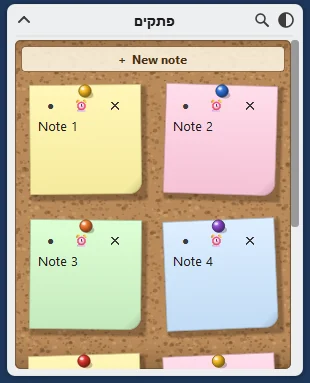
Notes appear two to a row on a cork board. Click one to open a large editor in the center of the screen; changes are saved when you close it. Beside them is a Hebrew–Gregorian calendar with holidays.
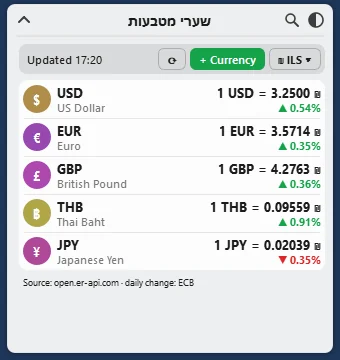
Choose a base currency (the default is the shekel) and add any currency from the list. Each row shows the rate, the time it was updated and the daily change. Rates refresh every 45 minutes and remain available offline.
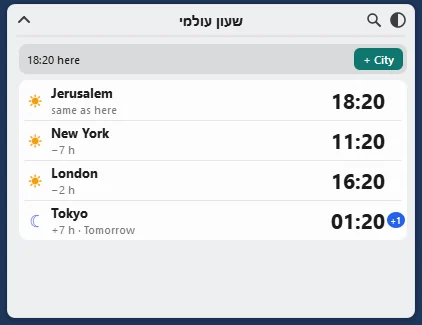
Cities from every time zone, with names in Hebrew and English. Each city shows the local time, the offset from here, and tomorrow or yesterday when needed. Defaults: Jerusalem, New York and London.
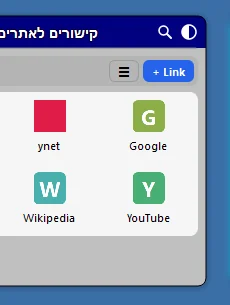
Add an address, drag a link from the browser, or click to open it. Each site shows its icon. Switch between grid and list view, and right-click to edit or delete.
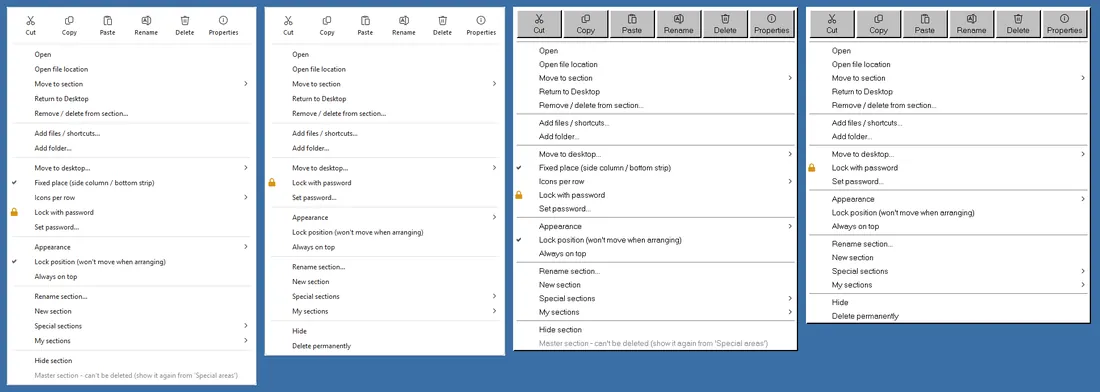
Right-click a file, folder or shortcut for an icon row: Cut, Copy, Paste, Rename, Delete and Properties. Delete sends items to the Recycle Bin, and copy and cut work with File Explorer, including keyboard shortcuts.
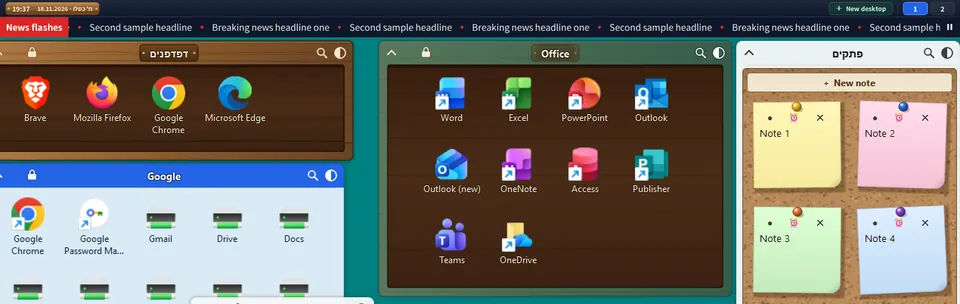
Every theme lives in a single menu. Apply one to a single section or to all of them, and mark a section as protected from global changes so it keeps its own look.
Per-user install, no administrator rights. You can choose whether to start with Windows and whether to add a desktop shortcut.
Download Desktop Organizer Pro
DesktopOrganizerSetup.exe · Version 1.56.1 · Windows 10/11, 64-bit
Also on the Microsoft Store as Desktop Organizer Pro
The installer is not digitally signed, so Windows may show a SmartScreen warning. To continue, click More info, then Run anyway.
The app installs into the current user’s Programs folder. You can uninstall it from Settings > Apps. On uninstall, items stored in sections are returned to the desktop — none of the user’s files are deleted.